Chariow
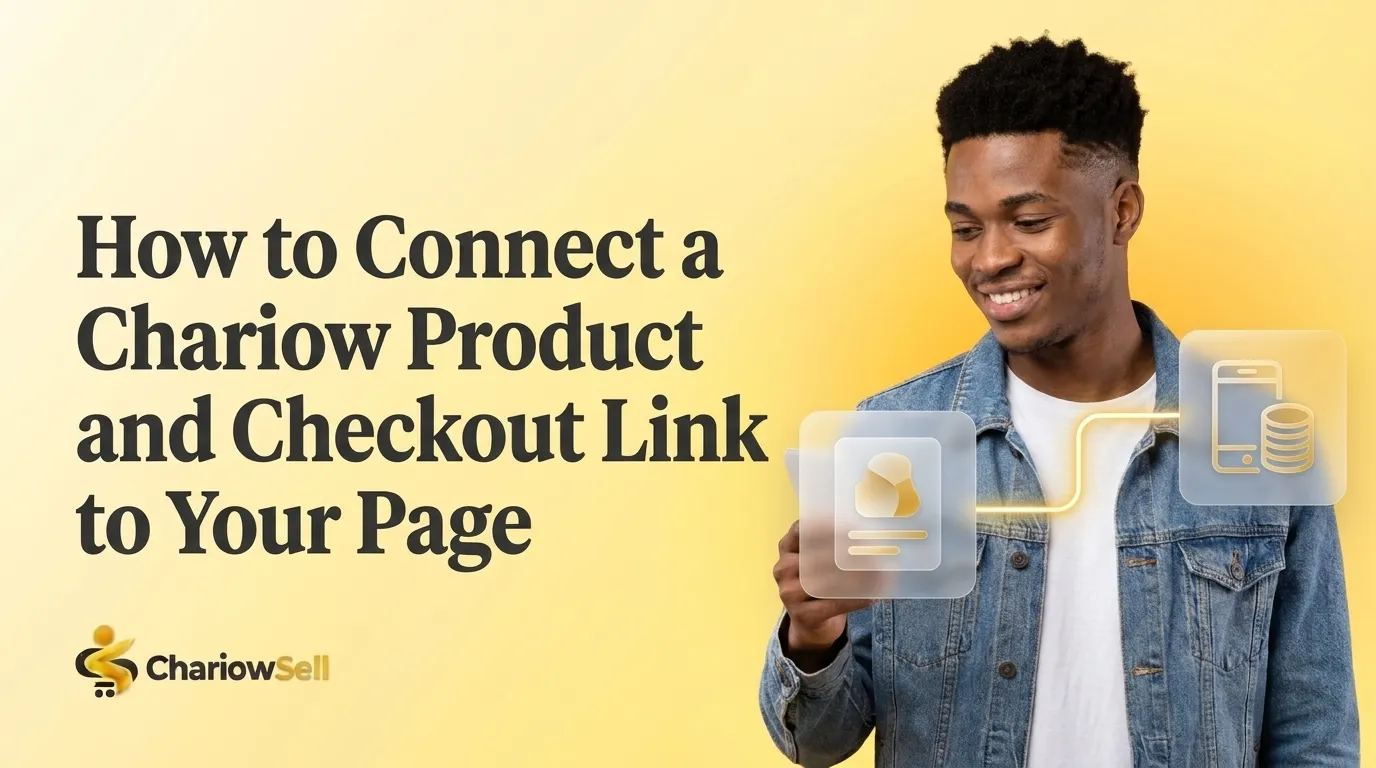
How to Connect a Chariow Product and Checkout Link to Your Page
Step-by-step tutorial on linking your Chariow digital product to ChariowSell: product ID, direct checkout URL, and embedded Mobile Money widget.
For your sales page to generate actual revenue, every call-to-action button must connect smoothly to your Chariow payment infrastructure. ChariowSell supports two primary checkout integrations: direct redirection to your Chariow checkout URL, or embedding the native Chariow checkout widget directly on the page so customers can pay via Mobile Money without navigating away.
This tutorial covers entering your product IDs, selecting your checkout mode, and synchronizing live pricing inside ChariowSell.
Before you begin
To connect your Chariow product:
- An active Chariow vendor account with at least one published digital product (ebook, course, template, or service).
- Your Chariow store domain (e.g.,
mystore.mychariow.shopor your custom domain). - The alphanumeric product ID from Chariow (starting with
prd_, such asprd_1a2b3c). - Your sales page open in the ChariowSell studio at
/pages/:id.
Step 1: Locate your product identifiers in Chariow
Log in to your Chariow seller dashboard:
- In the navigation menu, go to Products and click the relevant digital product.
- In your browser's address bar or the product summary card, locate the product reference code: it begins with
prd_followed by numbers and letters. - Also copy the public direct checkout URL (e.g.,
https://mystore.mychariow.shop/p/complete-playbook). - Note your primary store domain (
mystore.mychariow.shop).
Step 2: Open payment settings in ChariowSell
In the ChariowSell visual studio at /pages/:id:
- Click the Page settings button (gear icon) in the upper right toolbar.
- Inside the settings modal, look at the left column under the section titled Chariow product and checkout.
Step 3: Enter your product details based on preferred checkout mode
Choose the checkout experience that matches your campaign goals:
Option A: The embedded checkout widget (Recommended for maximum conversions)
This integration embeds Chariow's secure Mobile Money modal directly on your landing page:
- In the Product ID field, enter your unique
prd_xxxxxxcode. - In the Chariow store field, type your store domain (e.g.,
mystore.mychariow.shop). - When both inputs are filled, ChariowSell automatically mounts the official Chariow checkout widget to all purchase buttons on your page.
Option B: Direct checkout URL redirection
If you prefer forwarding buyers to the full product page on Chariow:
- Leave the store field blank.
- Paste the full web address into the Checkout or redirect URL (
checkoutUrl) field (e.g.,https://mystore.mychariow.shop/p/complete-playbook). - Clicking your CTA buttons will now open Chariow's external payment gateway.
If you are building a multi-tier pricing page, you will see separate product ID and checkout URL inputs for each individual tier package.
Step 4: Synchronize live prices and discounts automatically
If you hold an active Starter, Pro, or Business subscription with your Chariow store connected:
- In the Chariow section of the settings modal, click the Sync with Chariow button.
- ChariowSell queries Chariow's API to fetch your current active price, strikethrough promotional discounts, and stock levels.
- Your sales page copy updates automatically to reflect these numbers without manual copy-pasting.
- You can also click Import logo and brand color to extract your store's primary palette automatically.
Step 5: Save and test the purchase journey
- Click Save at the bottom of the settings dialog.
- Click Private preview at the top of the studio to open a simulated view.
- Scroll to your offer block and click the primary buy button: - If using the embedded widget, Chariow's checkout modal with Wave, Orange Money, and MTN prompts will open directly on top of your page. - If using direct redirection, you will seamlessly land on the Chariow hosted checkout page.
- Once verified, click Publish and Update live page to make the changes live for your public visitors.
If something goes wrong
- The embedded widget fails to launch: ensure the product ID begins with
prd_with no leading or trailing whitespace. Verify that the store domain contains no protocol prefixes or trailing slashes (entermystore.mychariow.shopinstead ofhttps://mystore.mychariow.shop/). - Button click results in a 404 page not found: check that your product is set to "Published" status in your Chariow seller dashboard.
- Sync fails to retrieve product data: reconnect your Chariow account in your profile settings or enter pricing manually.
Frequently asked questions (FAQ)
What is the advantage of the embedded widget over external redirects?
The embedded widget eliminates page load latency and browser switching. Customers enter their Mobile Money phone number directly on your sales page, significantly reducing cart abandonment.
Can I connect multiple Chariow products on a single page?
Yes. Using the Multi-offer page kind (unlocked on Pro and Business plans), you can assign distinct Chariow product IDs or checkout URLs to each individual pricing tier (e.g., Basic, Standard, and VIP packages).
Where are customer payouts processed?
All payments are processed securely by Chariow through local Mobile Money carriers and card networks. Your earnings accrue in your Chariow vendor balance and are disbursed directly to your mobile wallet or bank account.
Continue building your sales funnel by reading our tutorials on exporting HTML code to Chariow and pricing digital products for profitability. Connect your Chariow product today on ChariowSell.